User Manual
5 Simple Steps to Create a Medical Report
Follow these steps and start creating medical findings quickly and easily.
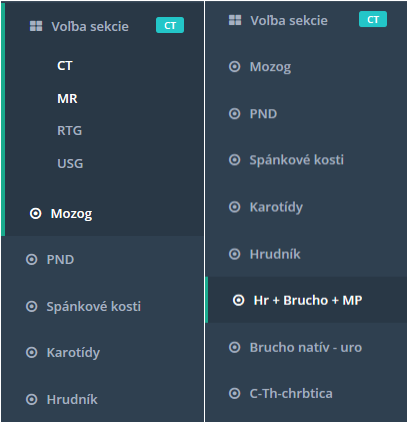
- Select Imaging Method (Modality)
- Select Examination Region – each selected modality includes several available examination regions.
- Interactive Form – each examination region includes an interactive form. By interacting with the form elements (either by selecting available parameters or entering required input values), you create the medical report text. Each form consists of interactive components such as selection buttons, confirmation checkboxes, and input fields for text or numerical values.
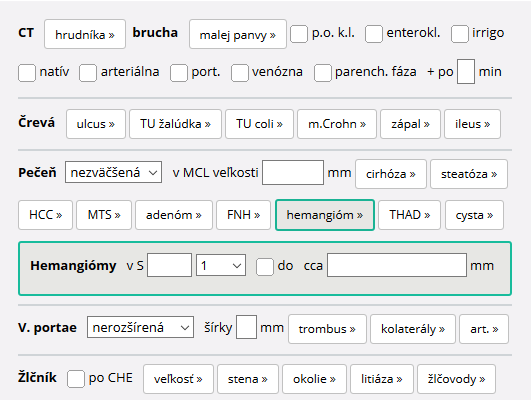
- Text Fields are an integral part of the interactive form. You can enter various parameters into these fields. Below are practical tips for using them:
-
Variant 1
To enter multiple sizes within one text box, use the character;.

The resulting text fragment will be: sizes approximately 7x6mm, 12x10mm and 7mm.
-
Variant 2
To enter multiple segments and sizes within the designated text boxes, again use the;character.

The resulting text fragment will be: in S2, S4a and S8 with sizes approximately 12mm, 16mm and 9mm.
-
Variant 3
If you want the generated text to include both the segment name and its corresponding size, use the..characters within the size textbox. The text before..represents the segment name, and the text after..represents the size.

The resulting text fragment will be: in S4a with a size of approximately 8mm.
-
Variant 4
An extension of Variant 3, allowing you to enter multiple segments with their respective sizes in one textbox. Use a combination of..and;.

The resulting text fragment will be: in S2 with a size of approximately 5mm, in S4a approximately 8mm, and in S7 approximately 6x3mm.
-
Customizing an MR Protocol
If you use a different protocol during an MR examination (e.g., Brain MRI) than the one currently available, you can easily modify it by overwriting the existing one and clicking the floppy disk icon.

Saving the new protocol is confirmed by the icon.

The modified MR protocol will remain saved for this examination until you change it again.
-
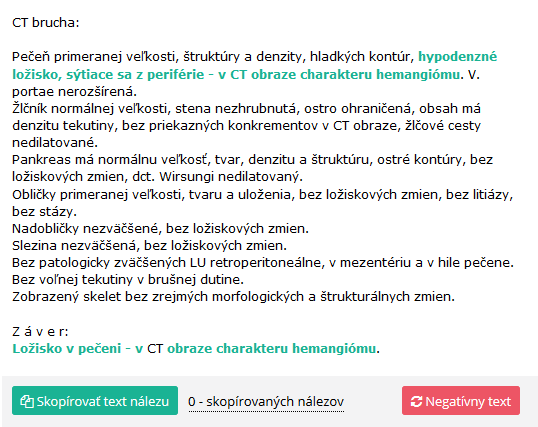
Copying the Finding – once the finding text is complete and reviewed, copy it using the green button
Copy Finding Text. TheNegative Textbutton resets the text.
If you have any questions or need further clarification, don’t hesitate to contact us at this address.