Guide for Physicians to Using the Generio Workflow Application
The Workflow application is a research-focused program for creating datasets with the goal of developing algorithms for automated diagnostics.
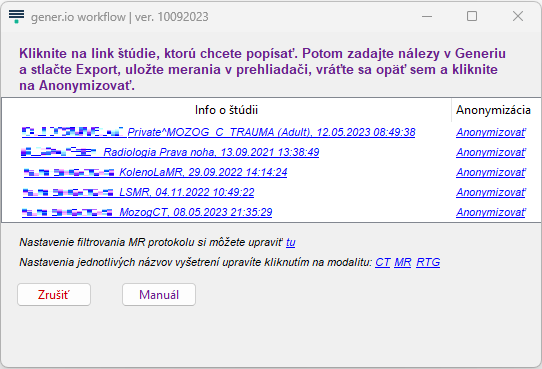
The table lists studies stored in the user-defined folder under \localPACS\Settings on the home drive. The first column contains clickable study info; clicking opens the Generio website with the study ID, the examined region, and, if applicable, the MR protocol. No personal data is transmitted.
The assignment of an examination name to a specific form opened in gener.io can be set by the user: click the respective modality hyperlink; a text file opens showing the examination name (as written in DICOM) and, after the semicolon, the form ID that appears in the URL of each form.
You can also configure how the MR protocol is created, according to the instructions in the corresponding text file.
Step-by-Step: Image-Based Dataset Creation
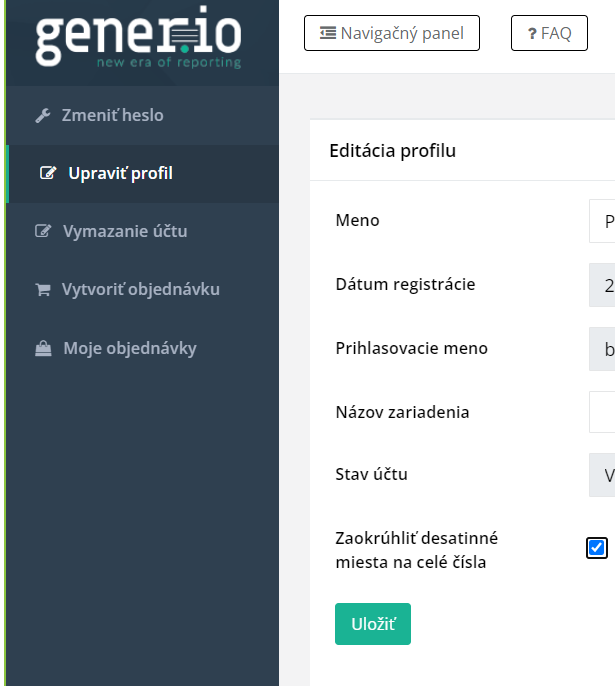
After logging into the gener.io web application, click the top-right “My Profile” and then on the left “Edit Profile.” Check the box “Round decimal places to whole numbers.”
This setting only needs to be done once; the system remembers it. It helps better match measurements. If the system does not match your inputs with saved DICOM measurements, it may prompt you to add decimal places.
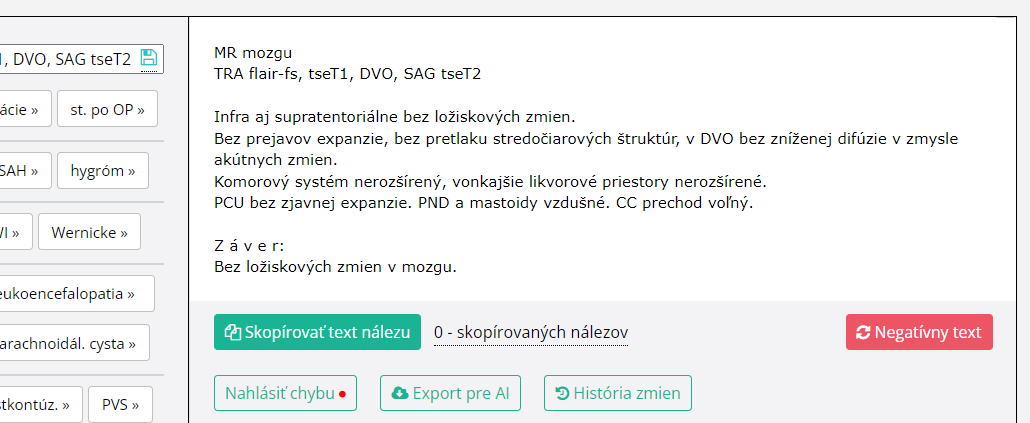
Return via the top-right link “Report Generator” and start reporting. Enter your findings into the forms. If you enter measurements, don’t forget to click “Save” in your DICOM viewer or enable saving of measurements when closing a study in the viewer settings.
When you are finished and the patient has given informed consent, click the green button at the bottom right “Export for AI.” This copies the generated text to the clipboard and also saves a temporary file in the “Downloads” folder.
Then go to the table in the Generio Workflow program and click the “Anonymize” link for the relevant study.
If the dataset was created successfully, the system reports: “Anonymization completed successfully.”
If you forget to save measurements in your DICOM viewer but still enter measurements in the form, the following error message appears:
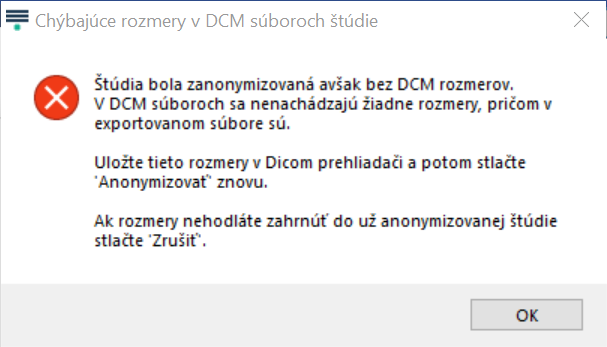
If the measurements entered by the physician cannot be matched with those stored in the DICOM files, the application indicates how to fix it. Example: If you enter the size 22 twice in the form because both lesions are approximately 22 mm when rounded, please enter the size including decimal places.
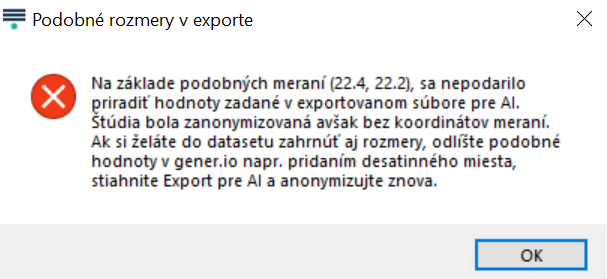
If you make a mistake, simply correct the relevant input in the Generio form, click “Export for AI” again, and then click “Anonymize” again in Generio Workflow. The dataset is always overwritten with the new one.
Datasets are saved on your computer in the home directory under \localPACS\anonymized. A project-designated staff member will come to copy the datasets from you. If the amount of datasets takes up too much disk space, please contact them in advance. Each dataset contains the email address of the creating physician, so your contribution (number of datasets) can be easily determined.
Please ensure that each project has been duly approved by the ethics committee and that you have obtained informed consent from every patient.
Kind regards,
The Generio Team